
MIDI is a way for musical devices and software to exchange performance instructions. Press a key and the keyboard can send the note, the moment it started, how hard you played, and when you released it. MIDI does not send the sound of the piano itself.
What does MIDI stand for?
MIDI stands for Musical Instrument Digital Interface. The MIDI Association overview describes it as a connector and message format for devices that control each other in real time. Because it is a shared standard, one keyboard can work with many instruments, recording tools, and learning apps.
A basic note message can describe:
- which key you pressed;
- when the note started and stopped;
- how hard you pressed, if the keyboard supports velocity;
- the MIDI channel used;
- controls such as a sustain pedal, modulation wheel, or pitch bend.
What is a MIDI keyboard?
A MIDI keyboard is a piano-style keyboard that sends these messages to a computer, app or another instrument while you play. Most current models connect by USB. Some add pads, knobs or faders for music production; you do not need those for piano lessons.
For Ultimidi, the keys are what matter: the game receives the notes you play when your browser supports Web MIDI.
MIDI is data, not audio
This difference explains many setup problems. A controller keyboard may have no speakers and may make no sound by itself. It sends instructions to software, which chooses a piano or another virtual instrument. A digital piano can make its own sound and also send MIDI at the same time.
An audio recording keeps the resulting sound. A MIDI recording keeps the performance instructions. You can change the instrument or correct a note later because the notes remain separate data.
Which device can read your MIDI keyboard?
Ultimidi reads the keyboard through your browser’s Web MIDI support. That support decides which device you can use, more than the cable does.

How to connect a MIDI keyboard to a computer
- Check the ports on the keyboard. Look for USB marked USB to Host, USB MIDI, or a five-pin MIDI output.
- Use a data-capable USB cable. If the keyboard only has five-pin MIDI, use a USB MIDI interface.
- Switch the keyboard on before you open the app.
- Open Ultimidi: Piano Journey in a browser that supports Web MIDI.
- Allow MIDI access when the browser asks, then press a few keys and confirm that the matching notes react.
Use Chrome, Edge or Opera on Windows, macOS, Linux or ChromeOS. Firefox 108 and later also works: it asks you to allow a small site permission add-on the first time a MIDI device is connected. Safari does not support Web MIDI. The Can I use table for Web MIDI lists current versions, and MDN explains the HTTPS and permission rules.
Can I connect a phone or tablet?
Android: yes, with USB OTG. The phone or tablet must support USB host mode, usually called USB OTG (On-The-Go). Most recent Android devices do, but some budget models do not. Android’s own MIDI test procedure connects the keyboard through an OTG adapter in the same way.
- Connect the keyboard’s USB cable to a USB OTG adapter (USB-C to USB-A socket), or use one USB-C to USB-B cable made for this job.
- Plug the adapter into the phone. If the keyboard has a power supply, switch it on.
- Open Ultimidi in Chrome or Samsung Internet and allow MIDI access.
A phone may not supply enough power for a USB-powered keyboard. If the keyboard stays dark or disconnects, power it from its own adapter or through a powered USB hub. A cable that only charges does not carry data.
iPhone and iPad: use the on-screen piano. Apple’s USB-C and Lightning camera adapters can connect a USB keyboard for native music apps. But browsers on iPhone and iPad run on Apple’s WebKit engine, and WebKit does not support Web MIDI. Ultimidi in the browser therefore cannot read the keyboard there.
The on-screen piano and the mapped computer keys work on every device. Use them when browser MIDI is unavailable, then return to a physical keyboard when you want to work on hand position and control.
What matters when choosing a beginner MIDI keyboard?
Model lists become outdated quickly. Start with the learning task instead of a brand ranking.
- Key size: full-size keys make the move to a piano easier. Mini keys save space but feel different.
- Key count: 49 or 61 keys gives a beginner more room for two-hand work. A 25-key controller is portable but restrictive.
- Velocity: velocity-sensitive keys can report how hard you play. This matters as you begin to shape dynamics.
- Sustain input: a pedal connection becomes useful as pieces grow.
- USB class compliance: a class-compliant keyboard usually works without a special driver.
- Built-in sound: choose a digital piano or keyboard with speakers if you want to play without a computer. A controller normally depends on software for sound.
For a first trial, do not buy equipment yet. You can test the lesson flow with touch or computer keys and decide whether the game fits how you want to practise.
Troubleshoot a keyboard that does not respond
- Reconnect the cable and confirm that it carries data, not only power.
- Switch the keyboard on, then reload the page.
- Close other music software that may have taken exclusive control of the device.
- Check the browser’s site permissions and MIDI support.
- Reset octave-shift or transpose controls if the wrong notes react.
- Try a direct USB port instead of an unpowered hub.
- On Android, check that the phone supports USB OTG and that you use an OTG adapter, not a plain USB-C charging adapter.
- In Firefox, accept the site permission add-on prompt. If you declined it, reload the page and try again.
Use MIDI in your first lesson
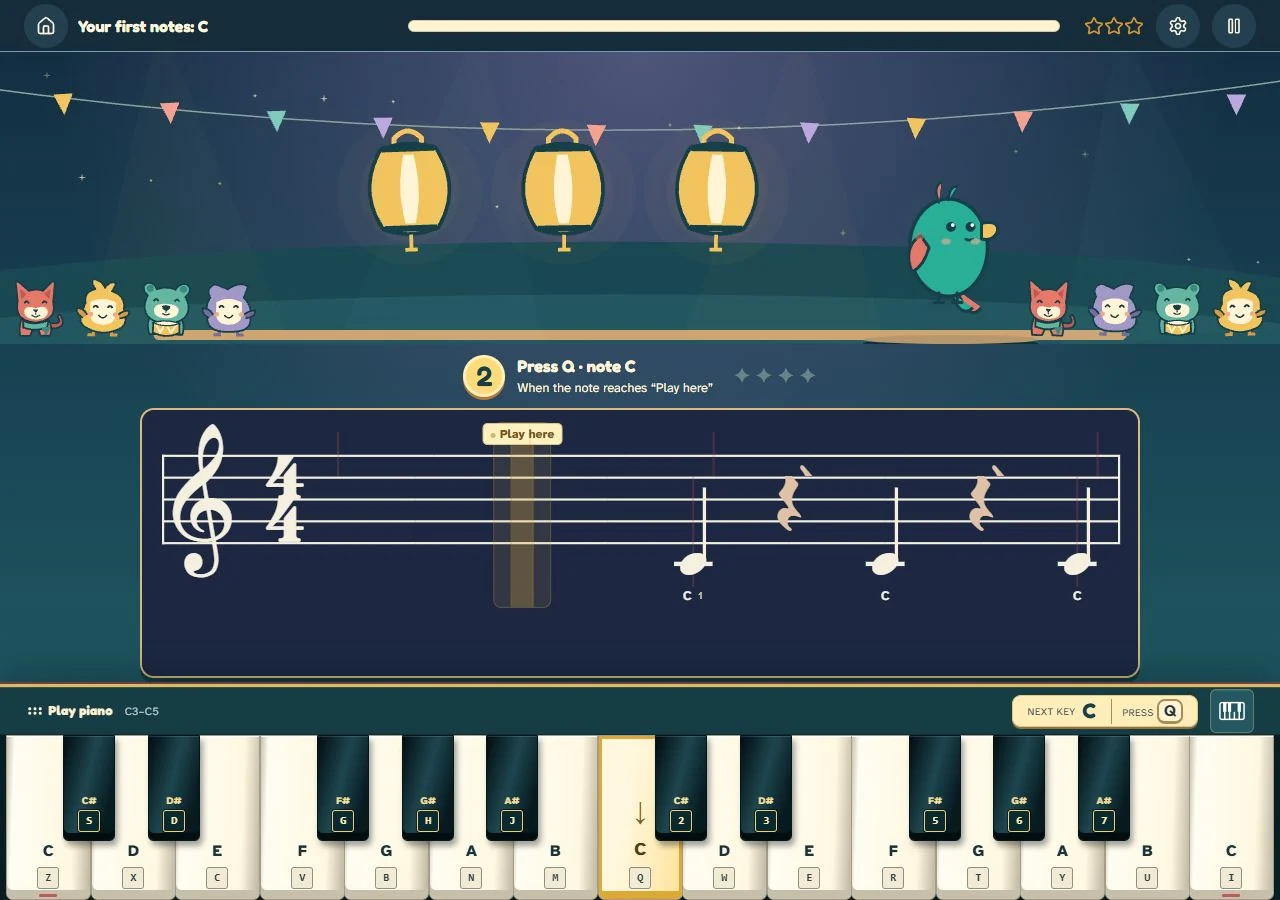
Once the keys react, stop testing and make music. Follow our 15-minute first MIDI piano session to find middle C, echo a short pattern, read it, and finish one steady phrase.