
Connect your keyboard, open MIDI Settings, allow access and play one note. The game shows the keyboard name, received note and matching key. Touch and computer keys stay available if MIDI does not work.
For instruments, cables and buying advice, read What is MIDI? This page covers the game controls.
Check your browser first
Web MIDI needs HTTPS and a compatible browser. Use Chrome or Edge on a computer for a straightforward starting point. Opera and Samsung Internet also support Web MIDI on supported platforms. Firefox 108+ can ask for a site-permission add-on. Safari and the usual iPhone/iPad browsers do not have built-in Web MIDI; MIDI support in a native music app is separate.
These details were checked 17 October 2026 against MDN’s browser table and Mozilla’s permission guidance.
1. Connect cable
Turn on the keyboard. Use its USB MIDI or USB-to-host port with a data cable. For five-pin MIDI, use a MIDI-to-USB interface. Android needs USB host/OTG support and the correct adapter; a bus-powered keyboard may need a powered hub. Check Android’s USB host guidance and your instrument’s manual.
2. Allow access
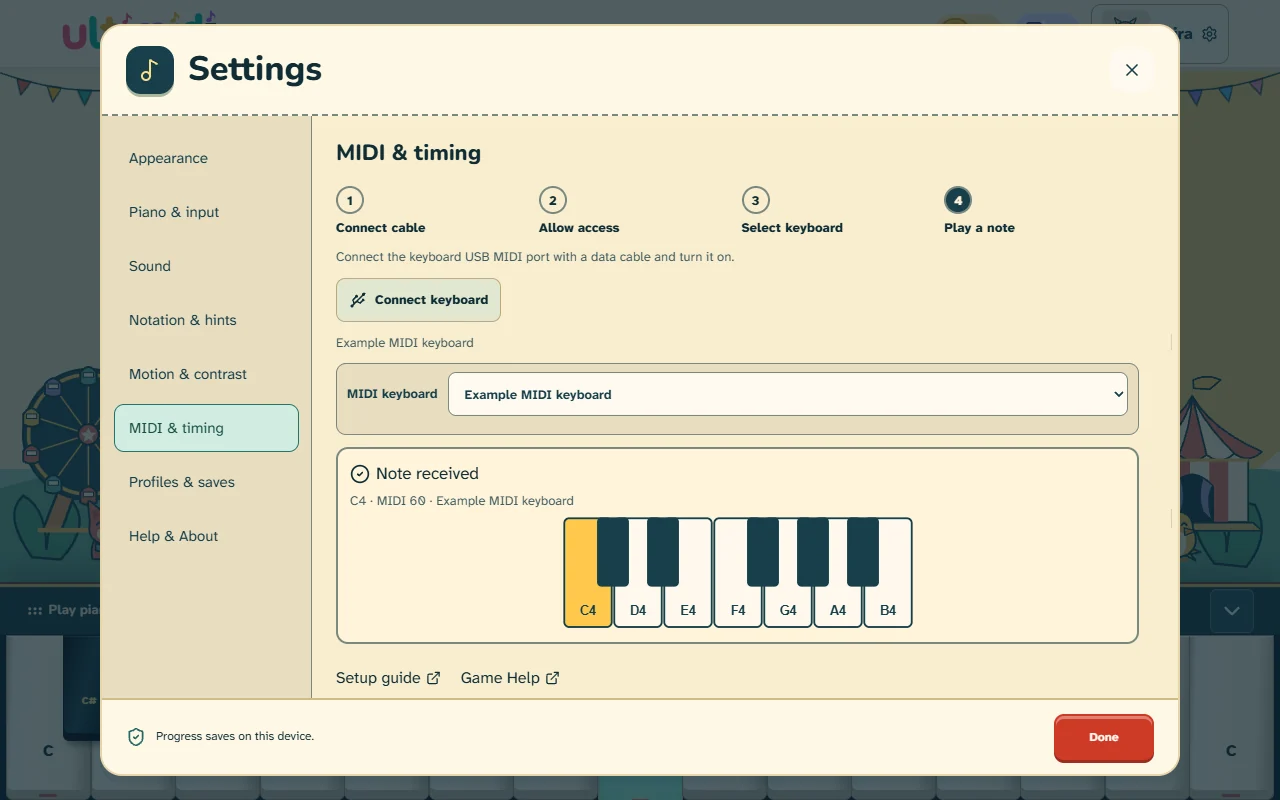
Open Ultimidi. Choose Connect a piano keyboard on Welcome or Connect keyboard on Home. This opens Settings → MIDI & timing. Choose Connect keyboard there and approve the browser prompt. Opening Settings by itself does not request MIDI access.
3. Select keyboard
Choose your instrument under MIDI keyboard. Use All connected keyboards if you want any listed keyboard to control the game. An explicit selection stays saved. If that keyboard disconnects, the game tells you; it does not silently select another one.
4. Play a note
Press one key. Look for Note received, its note name and a highlighted matching key. Release the key and confirm the highlight ends. These test notes do not score or advance a paused lesson.
Advanced · channel and timing contains channel selection and timing offsets. Leave all channels and 0 ms offsets unless you need them. Timing changes apply to your next lesson.
If it does not work
- Browser unsupported: use a supported browser or keep playing with touch/computer keys.
- Access denied: allow MIDI in the browser’s site settings, then choose Connect keyboard again. A browser or organization policy may also block it.
- No keyboard found: check power, the USB-to-host port and a data cable. Try a direct connection. Install a driver only if the manufacturer requires it.
- Saved keyboard disconnected: reconnect it, or select another keyboard yourself. The list updates while Settings is open.
- Keyboard listed but no note: check the selected keyboard and Advanced channel. Choose All channels, then test again. Reset octave/transpose controls if a different note appears.
- Note appears but no sound: choose Enable sound if shown. Check device volume, output/headphones and Settings → Sound. Try its sound test.
The Home reminder
The floating Home reminder asks if you have a MIDI piano keyboard. Choose Connect to open setup. Its close button waits at least one day before showing the reminder again. After repeated dismissals, the delay increases to 3, 7, 14, then 30 days. This choice stays on the device across tabs and visits. In Settings → MIDI & timing, Keyboard reminder on Home turns reminders off; switching it back on resets the delay. A successful MIDI note test also hides the reminder. Setup help and keyboard recommendations stay available in Settings.